







This comprehensive guide covers everything you need to know about touchscreen technology, from fundamental principles to advanced applications. Discover how different touchscreen types work, their advantages and disadvantages, ideal applications across industries, and how to choose the right technology for your specific needs. Whether you're selecting displays for industrial automation, retail POS systems, medical equipment, or interactive kiosks, this complete guide will help you make informed decisions.
Touchscreen technology has revolutionized the way we interact with digital devices, from smartphones and tablets to digital signage and industrial control systems. As touchscreens become increasingly prevalent across industries, understanding their technology, types, applications, and selection criteria has become essential for businesses and consumers alike.
This comprehensive guide covers everything from fundamental principles to advanced applications, helping you make informed decisions for your specific needs. We'll explore capacitive, resistive, infrared, surface acoustic wave, and optical touch technologies, along with their applications across various industries.
What is Touchscreen Technology?
Definition and Overview
A touchscreen is an input device that allows users to interact with a computer or electronic device by touching the display screen directly with their fingers or a stylus. Unlike traditional input methods that require separate keyboards or mice, touchscreens integrate the input mechanism directly into the display, creating an intuitive and space-efficient interface.
Key Components
Touchscreen systems consist of three main components:
- Touch Sensor: The surface that detects touch input
- Controller: Processes touch signals and converts them into digital data
- Software Driver: Enables communication between the touchscreen and the operating system
Historical Development
Touchscreen technology has evolved significantly since its inception:
- 1965: E.A. Johnson developed the first capacitive touchscreen
- 1970s: Resistive touchscreens were introduced
- 1980s: Touchscreens began appearing in commercial applications
- 2007: Apple's iPhone popularized multi-touch technology
- 2010s-Present: Advanced technologies like in-cell and on-cell displays emerged
Advantages of Touchscreen Technology
- Intuitive Interface: Natural and easy-to-learn interaction
- Space Efficiency: Combines display and input in one device
- Durability: Fewer moving parts compared to traditional input devices
- Versatility: Suitable for various applications and environments
- Accessibility: Easier for users with certain disabilities
How Do Touchscreens Work?
Basic Principles
Touchscreens detect touch input through various physical principles, depending on the technology used. The fundamental process involves:
- Touch Detection: The screen detects physical contact
- Signal Processing: The controller processes the touch signal
- Coordinate Calculation: The system determines the exact touch location
- Input Translation: The touch is converted into a command or action
Types of Touchscreen Technology
Capacitive Touchscreen Technology
Capacitive touchscreens work by detecting changes in electrical capacitance when a conductive object (like a finger) touches the screen.
Surface Capacitive Technology
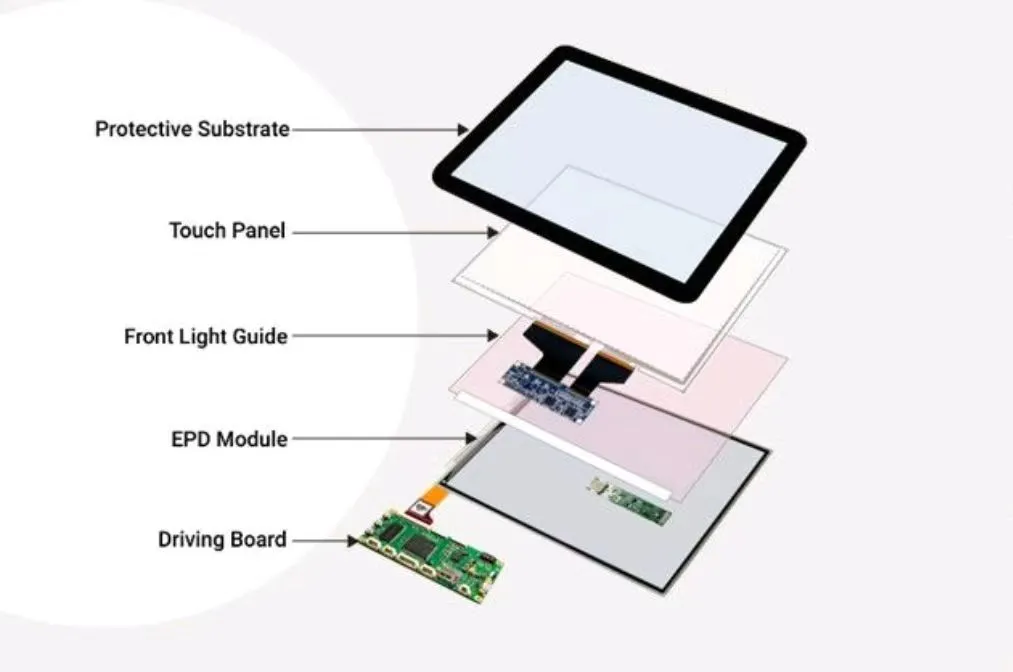
- Uses a uniform conductive layer (typically indium tin oxide, ITO)
- Electrodes at the corners apply a uniform voltage
- When touched, the finger draws current from each corner
- The controller calculates touch position based on current ratios
Advantages:
- High clarity and light transmission
- Durable surface
- Good for large displays
Disadvantages:
- Only responds to conductive objects (fingers, not gloves)
- Limited to single-touch
- More expensive than resistive
Projected Capacitive Technology (PCAP)
- Uses a grid of electrodes (transparent conductors)
- Creates an electrostatic field
- Touch disrupts the field, changing capacitance
- Supports multi-touch gestures
Advantages:
- Multi-touch capability
- High accuracy and sensitivity
- Works with thin screen protectors
- Excellent clarity
Disadvantages:
- Higher cost
- Requires conductive input (fingers or special stylus)
- More complex manufacturing
Resistive Touchscreen Technology
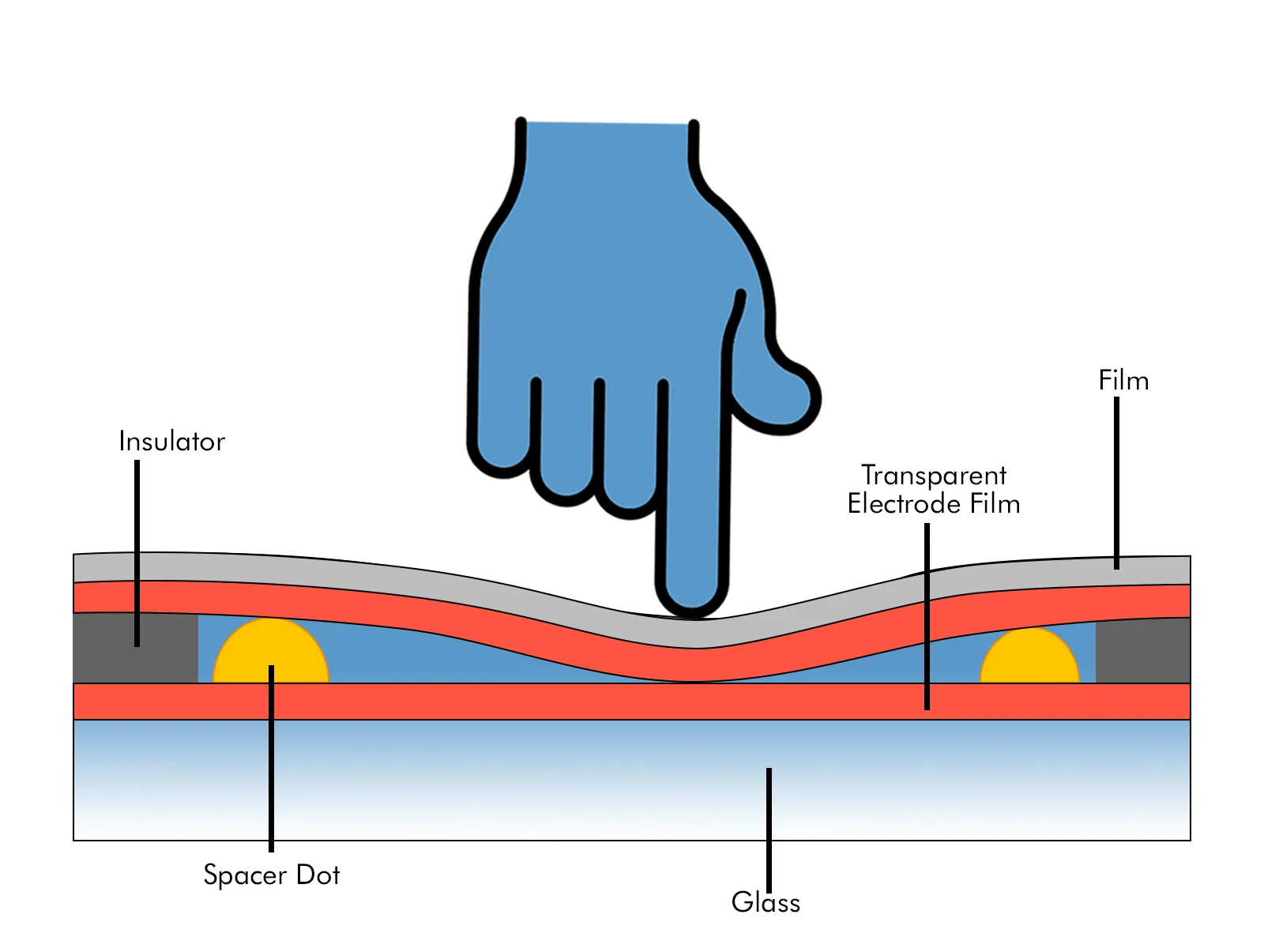
Resistive touchscreens consist of two flexible layers separated by a small gap:
- Top Layer: Flexible, transparent conductive layer
- Spacer Dots: Maintain gap between layers
- Bottom Layer: Rigid conductive layer
- Controller: Measures voltage changes
How It Works
- Pressure from touch brings the two layers into contact
- Voltage is applied to one layer
- The other layer measures the voltage at the touch point
- Controller calculates X and Y coordinates
Types of Resistive Touchscreens:
- 4-Wire Resistive: Basic design, lower cost
- 5-Wire Resistive: More durable, bottom layer handles all measurements
- 8-Wire Resistive: Highest accuracy, best for large screens
Advantages:
- Works with any object (finger, stylus, gloved hand)
- Lower cost
- Good resistance to surface contaminants
- High accuracy for single-touch
Disadvantages:
- Lower clarity (75-85% light transmission)
- Limited to single-touch
- Less durable (flexible top layer can wear)
- Requires pressure to activate
Infrared Touchscreen Technology
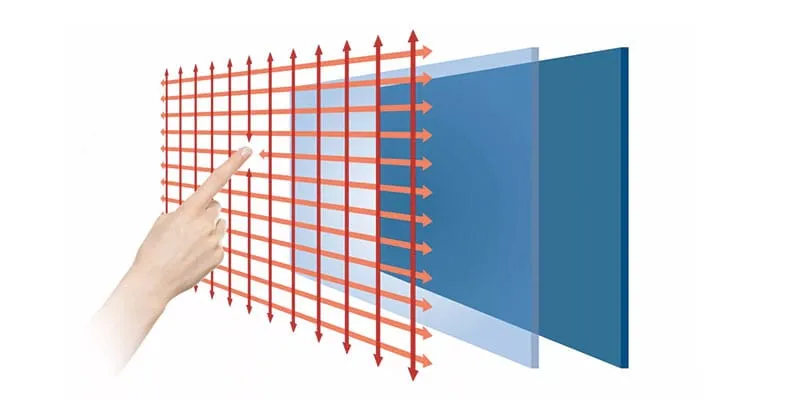
Infrared (IR) touchscreens use an array of IR LEDs and photodetectors around the screen perimeter:
- IR LEDs: Emit infrared light beams
- Photodetectors: Detect light interruptions
- Grid Pattern: Creates an invisible grid of light
- Touch Detection: Interruption of beams indicates touch location
Advantages:
- Excellent clarity (no overlay)
- Works with any object
- Highly durable
- Good for large displays
- Multi-touch capable
Disadvantages:
- Higher cost
- Susceptible to ambient light interference
- Requires bezel space
- Can be affected by dust and debris
Surface Acoustic Wave (SAW) Technology
SAW touchscreens use ultrasonic waves:
- Transducers: Generate and receive acoustic waves
- Wave Propagation: Waves travel across the screen surface
- Touch Absorption: Touch absorbs wave energy
- Position Calculation: Controller determines touch location
Advantages:
- Excellent clarity
- Durable glass surface
- Works with any object
- High resolution
Disadvantages:
- Sensitive to surface contaminants
- More expensive
- Limited to single-touch
- Can be affected by water droplets
Optical Touch Technology
Optical touchscreens use cameras or sensors to detect touch:
- Sensors: Positioned at screen corners
- Light Detection: Detects shadows or reflections
- Triangulation: Calculates touch position
- Multi-Touch: Supports multiple simultaneous touches
Advantages:
- Excellent clarity
- Multi-touch capable
- Durable
- Scalable to large sizes
Disadvantages:
- Higher cost
- Requires bezel space
- Can be affected by ambient light
- More complex setup
Touchscreen Technology Comparison
To help you make the best decision, here's a comprehensive comparison table of the five main touchscreen technologies across key factors:
| Feature | Capacitive | Resistive | Infrared | SAW | Optical |
|---|---|---|---|---|---|
| Clarity | |||||
| Multi-Touch | |||||
| Durability | |||||
| Cost | |||||
| Input Type | Conductive only | Any object | Any object | Any object | Any object |
| Accuracy | |||||
| Response Time | |||||
| Best For | Consumer devices, modern POS, mobile devices | Industrial, medical, budget projects | Large displays, kiosks, digital signage | High-clarity applications, retail displays | Large interactive displays, collaborative workspaces |
Touchscreen Applications Across Industries
Industrial and Manufacturing
Touchscreens have become essential in industrial automation and manufacturing:
Applications:
- Human-Machine Interfaces (HMI): Control and monitor manufacturing processes
- Programmable Logic Controllers (PLC): Interface for industrial control systems
- Quality Control Systems: Inspection and testing equipment
- Warehouse Management: Inventory tracking and logistics
Requirements:
- High durability and resistance to harsh environments
- IP65/IP67 protection ratings
- Wide operating temperature ranges
- Resistance to chemicals and oils
- Long operational life
Recommended Types:
- Industrial-grade capacitive (PCAP)
- Resistive (for cost-sensitive applications)
- Infrared (for large displays)
Healthcare and Medical
Touchscreens in healthcare must meet strict hygiene and reliability standards:
Applications:
- Medical Equipment: Patient monitors, diagnostic devices
- Electronic Health Records (EHR): Patient data management
- Surgical Systems: Operating room equipment interfaces
- Patient Kiosks: Check-in and information systems
Requirements:
- Easy to clean and disinfect
- Glove-compatible (resistive or infrared)
- High reliability and accuracy
- Compliance with medical standards
- Antimicrobial surfaces
Retail and Point of Sale (POS)
Touchscreens are ubiquitous in retail environments:
Applications:
- POS Systems: Checkout terminals
- Self-Service Kiosks: Ordering, information, payment
- Digital Signage: Interactive advertising displays
- Inventory Management: Stock tracking systems
Requirements:
- High clarity for product display
- Fast response times
- Durability for high-traffic areas
- Easy maintenance
- Cost-effectiveness
Transportation and Logistics
Touchscreens in transportation must withstand constant use and various environmental conditions:
Applications:
- Ticketing Systems: Public transportation kiosks
- Fleet Management: Vehicle tracking and dispatch
- Navigation Systems: In-vehicle displays
- Cargo Management: Shipping and logistics tracking
Education and Training
Interactive touchscreens enhance learning experiences:
Applications:
- Interactive Whiteboards: Classroom presentations
- Student Tablets: Educational devices
- Training Simulators: Professional training systems
- Collaborative Workspaces: Group learning environments
Automotive
Touchscreens in vehicles must meet automotive standards:
Applications:
- Infotainment Systems: Entertainment and navigation
- Climate Control: HVAC interfaces
- Driver Assistance: Safety system controls
- Rear-Seat Entertainment: Passenger displays
How to Choose the Right Touchscreen
Step 1: Define Your Application Requirements
Before selecting a touchscreen, clearly define your needs:
Key Questions to Ask:
- What is the primary use case?
- What is the operating environment?
- Who will be using the touchscreen?
- What is your budget range?
- What size display do you need?
- Do you need multi-touch capability?
- What are the environmental conditions?
- What is the expected usage frequency?
Step 2: Consider Environmental Factors
Indoor vs. Outdoor:
- Indoor: Standard touchscreens work well
- Outdoor: Require high brightness, weather resistance, and sunlight readability
Temperature Range:
- Standard: 0°C to 50°C
- Industrial: -20°C to 70°C or wider
- Automotive: -40°C to 85°C
Humidity and Protection:
- IP54: Protected against dust and water splashes
- IP65: Dust-tight and protected against water jets
- IP67: Protected against immersion
Step 3: Evaluate Touch Technology
Choose Capacitive If:
- You need multi-touch capability
- High clarity is essential
- Modern, responsive interface is required
- Budget allows for higher cost
- Users will use fingers (not gloves)
Choose Resistive If:
- Cost is a primary concern
- You need stylus or gloved-hand input
- Single-touch is sufficient
- High durability is less critical
- Industrial or rugged applications
Choose Infrared If:
- You need large displays (55" and above)
- Multi-touch on large screens is required
- Any-object input is needed
- Excellent clarity is essential
- Bezel space is available
Step 4: Determine Size and Resolution
Size Considerations:
- Small (7"-15"): Tablets, portable devices, compact kiosks
- Medium (15"-32"): POS systems, industrial HMIs, medical equipment
- Large (32"-65"): Interactive displays, digital signage, kiosks
- Extra Large (65"+): Large format displays, collaborative workspaces
Step 5: Consider Integration Requirements
Interface Options:
- USB: Most common, plug-and-play
- Serial (RS232): Legacy systems, industrial applications
- I2C/SPI: Embedded systems
- Network (Ethernet): Remote displays, networked systems
Step 6: Evaluate Cost and Total Cost of Ownership
Initial Cost Factors:
- Touchscreen technology type
- Display size and resolution
- Durability and protection ratings
- Brand and quality
Total Cost of Ownership:
- Initial purchase price
- Installation costs
- Maintenance and repair
- Replacement frequency
- Downtime costs
Installation and Setup
Pre-Installation Planning
Site Preparation:
- Location Assessment: Ensure adequate space and accessibility
- Power Requirements: Verify power supply and outlets
- Mounting Surface: Check wall strength or stand stability
- Cable Management: Plan cable routing and concealment
- Environmental Conditions: Verify temperature, humidity, and lighting
Installation Steps
Step 1: Unboxing and Inspection
- Carefully unbox the touchscreen
- Inspect for shipping damage
- Verify all components are included
- Check serial numbers and documentation
Step 2: Mounting the Display
- Wall Mount: Locate wall studs, mark positions, drill holes, attach bracket, hang display
- Stand Mount: Assemble stand, attach display, adjust height and angle
- VESA Mount: Attach VESA bracket, mount to compatible arm, adjust position
Step 3: Cable Connection
- Connect power cable
- Connect video input (HDMI, DisplayPort, VGA, etc.)
- Connect touch interface cable (USB, serial, etc.)
- Organize and secure cables
- Test all connections
Step 4: Touch Calibration
Calibration is crucial for accurate touch response:
Calibration Process:
- Access calibration menu
- Follow on-screen prompts
- Touch calibration points accurately
- Save calibration settings
- Test touch accuracy
Maintenance and Troubleshooting
Regular Maintenance
Daily Maintenance:
- Clean screen surface with appropriate cleaner
- Check for visible damage or wear
- Verify touch responsiveness
- Inspect cables and connections
Weekly Maintenance:
- Deep clean screen surface
- Check mounting stability
- Inspect for loose connections
- Review error logs (if available)
Monthly Maintenance:
- Recalibrate touchscreen
- Update software and drivers
- Check for firmware updates
- Inspect overall system health
- Review usage statistics
Cleaning Procedures
For Capacitive Touchscreens:
- Use microfiber cloth
- Apply screen cleaner sparingly
- Wipe in circular motions
- Avoid abrasive materials
- Don't use excessive pressure
For Resistive Touchscreens:
- Use soft, lint-free cloth
- Apply gentle pressure
- Clean regularly to prevent buildup
- Avoid harsh chemicals
Cleaning Solutions:
- Recommended: Distilled water, isopropyl alcohol (70%), commercial screen cleaners
- Avoid: Ammonia-based cleaners, abrasive materials, excessive moisture
Common Issues and Troubleshooting
Issue 1: Touch Not Responding
Possible Causes:
- Screen not calibrated
- Driver not installed or outdated
- Physical damage
- Connection issues
- Software conflicts
Solutions:
- Recalibrate the touchscreen
- Reinstall or update drivers
- Check physical connections
- Restart the system
- Check for software conflicts
- Contact technical support if persistent
Issue 2: Inaccurate Touch Response
Possible Causes:
- Calibration drift
- Screen contamination
- Physical damage
- Environmental interference
Solutions:
- Recalibrate the touchscreen
- Clean screen surface thoroughly
- Check for physical damage
- Verify environmental conditions
- Check for electromagnetic interference
Future Trends in Touchscreen Technology
Emerging Technologies
Haptic Feedback:
- Tactile response to touch
- Enhanced user experience
- More realistic interactions
- Applications in gaming, medical, and industrial sectors
Flexible and Foldable Displays:
- Bendable touchscreens
- New form factors
- Enhanced portability
- Applications in mobile devices and wearables
In-Cell and On-Cell Technology:
- Integration of touch sensors into display layers
- Thinner, lighter devices
- Improved clarity
- Lower manufacturing costs
Force Touch (3D Touch):
- Pressure-sensitive touch
- Additional input dimension
- More intuitive interactions
- Enhanced gesture recognition
Gesture Recognition:
- Non-contact interaction
- Hand and finger tracking
- Applications in public spaces
- Enhanced accessibility
Conclusion
Touchscreen technology has evolved from a niche technology to a ubiquitous interface solution across industries. Understanding the different types, applications, and selection criteria is essential for making informed decisions that meet your specific needs.
Key Takeaways
- Technology Selection: Choose the right touchscreen technology based on your application requirements, environment, and budget.
- Proper Installation: Follow proper installation and calibration procedures to ensure optimal performance.
- Regular Maintenance: Implement a maintenance schedule to prolong lifespan and ensure consistent performance.
- Future-Proofing: Consider emerging technologies and trends when making long-term decisions.
- Total Cost of Ownership: Evaluate not just initial cost, but long-term value and reliability.
Selecting the right touchscreen technology depends on your specific application requirements, user interaction patterns, environmental conditions, and budget constraints. Capacitive touchscreens excel in modern consumer applications requiring multi-touch, resistive touchscreens are ideal for industrial and cost-sensitive projects, and infrared touchscreens are perfect for large-format public displays.
Consider all factors—input methods, environmental conditions, screen size, multi-touch needs, and budget—when making your decision. The right choice will provide optimal user experience, durability, and value for your specific application.